Watt Quick Start
Welcome to your first steps with Platformatic Watt, the Node.js Application Server. This guide will help you set up and run an application composed of the following stack:
- Next.js frontend, to render our frontend
- Generic
node:httpcreateServer, to showcase how to add an existing Node.js app - Platformatic Gateway, to coordinate/expose them all.
Prerequisites
Before starting, ensure you have the following installed:
- Node.js (v22.19.0+)
- npm (comes with Node.js)
- A code editor, (e.g., Visual Studio Code)
Set up Watt
npx wattpm createWhich will output:
Hello YOURNAME, welcome to Watt!
? Where would you like to create your project? .
? Which package manager do you want to use? npm
? Which kind of application do you want to create? @platformatic/node
✔ Installing @platformatic/node using npm ...
? What is the name of the application? node
? Do you want to use TypeScript? no
? Do you want to create another application? no
? What port do you want to use? 3042
? Do you want to init the git repository? no
Dependencies are going to be installed. Your application is located in web/node.
The watt.json file is automatically created in the node folder, and the package.json file includes @platformatic/node as a dependency.
Add your first Node.js application to Watt
By choosing the @platformatic/node application, you have already created your nodejs app.
This file is created as your nodejs app:
import { getLogger } from '@platformatic/globals'
import { createServer } from 'node:http'

export function create () {
  const logger = getLogger()

  return createServer((_, res) => {
    logger.debug('Serving request.')
    res.writeHead(200, { 'content-type': 'application/json', connection: 'close' })
    res.end(JSON.stringify({ hello: 'world' }))
  })
}
The getLogger() function comes from @platformatic/globals, which exposes runtime APIs to applications running inside Watt.
You can also use Express, Fastify, Koa or any other Node.js framework.
Start your Watt server
Run the following command in the root of project to start your Watt server:
npm startThis will internally run wattpm start and start your Watt server.
If you want to have a “watch mode” to automatically restart the server when you make changes, you can run this command in the root directory:
npm run devWhich will run wattpm dev and start your Watt server in watch mode.
Your first Watt server is now live! You can test it with:
curl http://localhost:3042Add a Platformatic Gateway to run multiple apps
Inside node, let’s create a new Platformatic Gateway
npx wattpm createThis will output:
Hello YOURNAME, welcome to Watt!
Using existing configuration ...
? Which package manager do you want to use? npm
? Which kind of application do you want to create? @platformatic/gateway
✔ Installing @platformatic/gateway using npm ...
? What is the name of the application? gateway
? Do you want to use TypeScript? no
? Do you want to create another application? no
? Which application should be exposed? gateway
Start your Watt server again:
You can run these commands in the root directory:
npm startIf you want to have a “watch mode” to automatically restart the server when you make changes, you can run this command in the root directory:
npm run devWhich will run wattpm dev and start your Watt server in watch mode.
Then, you can test it with:
curl http://localhost:3042/nodeAdd a Next.js application to Watt
Inside node, let’s create a new Next.js app:
npx create-next-app web/nextWhich will output:
✔ Would you like to use TypeScript? … No
✔ Which linter would you like to use? › ESLint
✔ Would you like to use React Compiler? No
✔ Would you like to use Tailwind CSS? … No
✔ Would you like your code inside a `src/` directory? … Yes
✔ Would you like to use App Router? (recommended) … Yes
✔ Would you like to customize the import alias (`@/*` by default)? … NoThen, let’s import it to our Watt server:
npx wattpm-utils importThis will also install the required dependencies. The command will output:
[13:06:10.996] INFO (42432): Application next is using Next.js. Adding @platformatic/next to its package.json dependencies.
[13:06:10.998] INFO (42432): Installing dependencies for the project using npm ...
[13:06:12.119] INFO (42432): Installing dependencies for the application gateway using npm ...
[13:06:13.092] INFO (42432): Installing dependencies for the application node using npm ...
[13:06:14.310] INFO (42432): Installing dependencies for the application next using npm ...
Then, we need to tell Watt to expose our next server on /next by modifying web/next/watt.json:
{
  "$schema": "https://schemas.platformatic.dev/@platformatic/next/3.0.0.json",
  "application": {
    "basePath": "/next"
  }
}
You can run npm run dev to start your Watt server in dev/watch mode, which in turn will start Next.js
in development mode.
Then, you can test it by opening your browser at http://localhost:3042/next.
fetch the data from the Node.js app in the Next.js app
Replace web/next/src/app/page.js with the following code:
import styles from './page.module.css'

export default async function Home () {
  const { hello } = await (await fetch('http://node.plt.local', { cache: 'no-store' })).json()
  return (
    <div className={styles.page}>
      <main className={styles.main}>Hello {hello}</main>
    </div>
  )
}
This will fetch the data from the Node.js app and display it in the Next.js app.
Note that it uses the node.plt.local hostname, which is the internal hostname for the node application.
This domain name would not work outside of a Watt or Platformatic environment.
Launch it with: npm run dev.
You can now test it by opening your browser at http://localhost:3042/next.
Build and Production mode
To create a build for production, you can run wattpm build, which is exposed as npm script:
npm run buildWhich will in turn create a build for Next.js and for the Node.js app (in case that is needed).
To run the server in production mode, you can run:
npm run startwhich will call wattpm start.
Debug individual applications with Chrome DevTools
You can debug your Watt server with Chrome DevTools by running:
npm run start -- --inspectThis will start an inspector instance in each application, and you can connect to it with Chrome DevTools.
Open chrome://inspect in Chrome, and you will see the applications listed there.
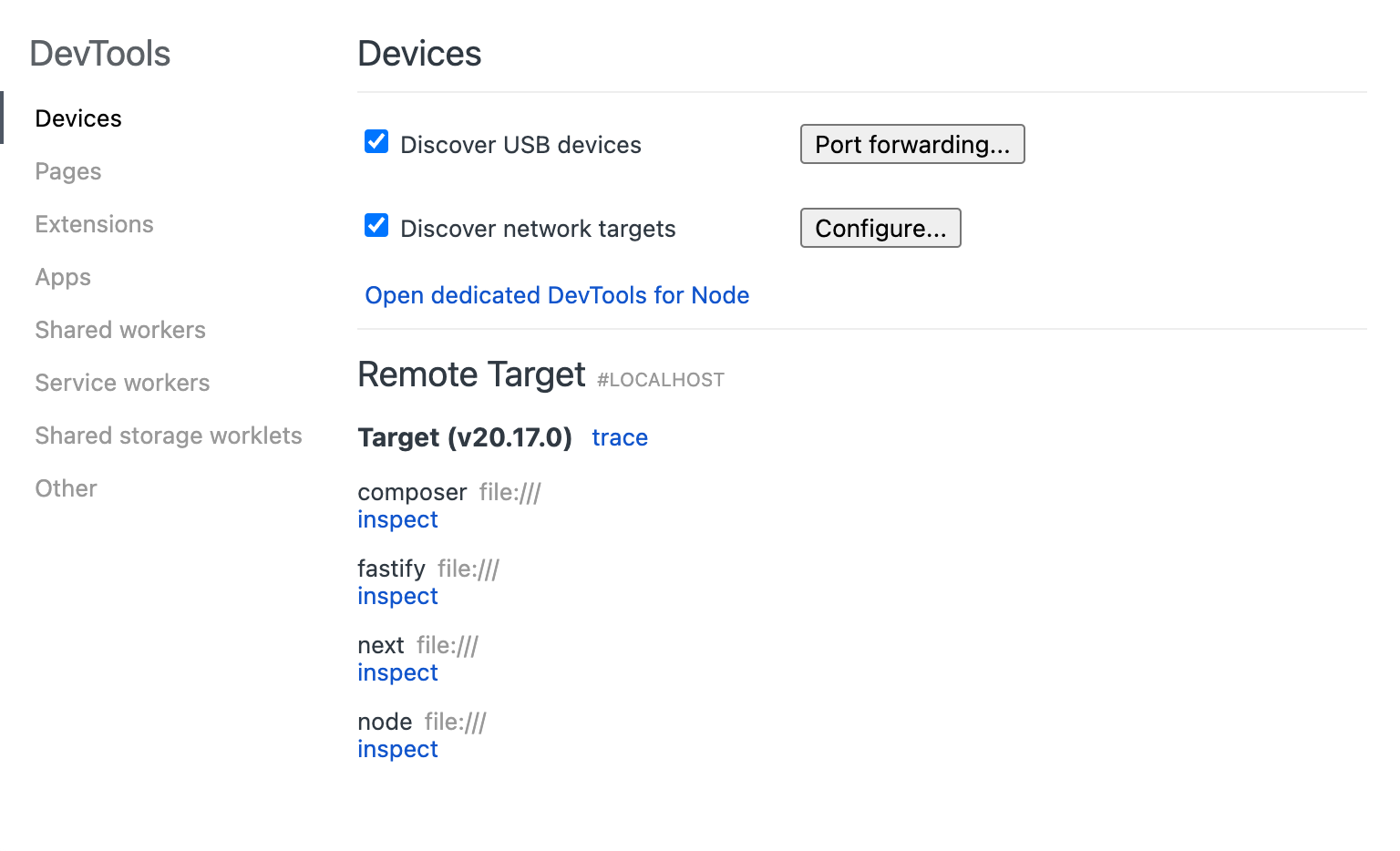
Then, you can click on inspect to open the DevTools for that application.
Debug individual applications with VS Code
You can debug the code of individual Watt applications directly in VS Code.
To run the debugger in VS Code:
- add a breakpoint in your Watt application code
- open the
Command Palette(Ctrl+Shift+Pon Windows,CMD+Shift+Pon Mac) - search
Debug: Toggle Auto Attach, then selectAlwaysfrom the list of options - run watt with
npm run dev - you should now see in your shell a log that confirms that the debugger is listening
Debugger listening on ws://127.0.0.1:62807/6132054c-766e-4d86-a716-f634118275ed
For help, see: https://nodejs.org/en/docs/inspector
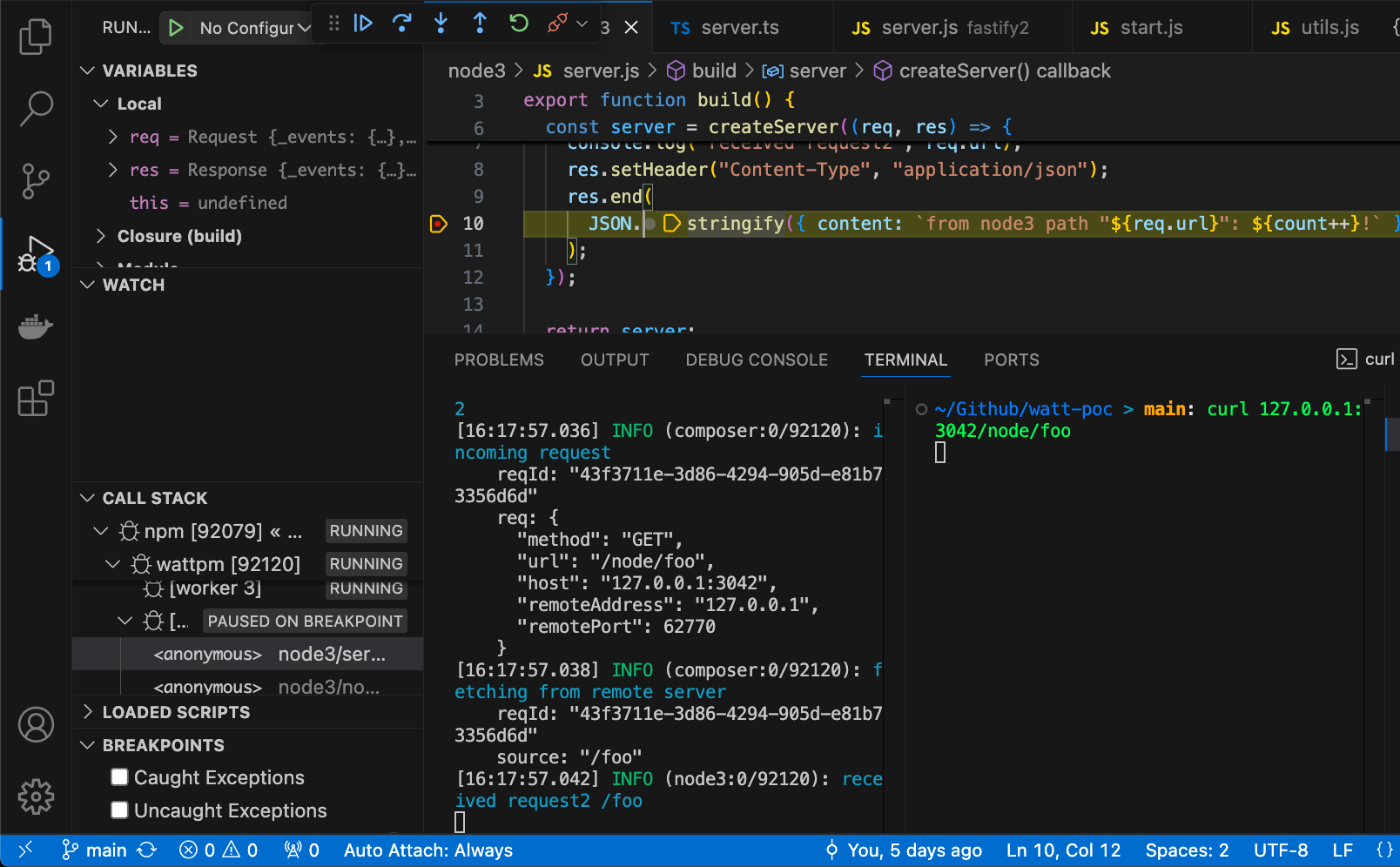
Debugger attached.- do a request to your application, to trigger the breakpoint code, and use VS Code to debug it as by the following screenshot